For Mac, iPhone, and iPad
Your screen.
Somewhere else.
See and control every display of your Mac from your iPhone or iPad, at home or away. Your screen travels encrypted from your Mac to your device, and at home it never leaves your own network.
Your whole Mac, in your hand.
ElseScreen is made for the Mac on your desk and the iPhone or iPad in your hand, wherever you are.
Every display
Switch between your Mac's displays with one tap, or see all of them at once and pick one.
Feels like it's right there
Hardware video encoding at up to 60 frames a second, and a pointer that moves the moment your finger does. Quality mode shows your display at its own resolution, in full color.
Trackpad and keyboard
Click, right-click, drag, scroll, and zoom like on a trackpad. Type in any language, use ⌘ shortcuts, and get the keyboard as soon as you click a text field. On iPad, a mouse, trackpad, or Apple Pencil points too.
From anywhere
Reach your Mac away from home, with no port forwarding and no account: directly where the networks allow, and through a relay that can't read your screen where they don't.
Hear your Mac
Your Mac's sound plays on your iPhone or iPad, in step with the picture.
Privacy Mode
Black out your Mac's own screens and silence its speakers while you work on it from elsewhere, and have it lock when you're done.
Copy and paste across
Copy on your Mac and paste on your iPhone or iPad, or the other way round, formatting included.
Private by design
No account, no tracking, nothing collected. Every session is encrypted end to end, and at home it goes straight between your devices, over your own network.
Paired and encrypted
Pair a device once by scanning a code on your Mac. Only devices you paired can connect, and Face ID can lock the app.
A closer look.
These are the app's own screens, with made-up desktops in place of anyone's real one.
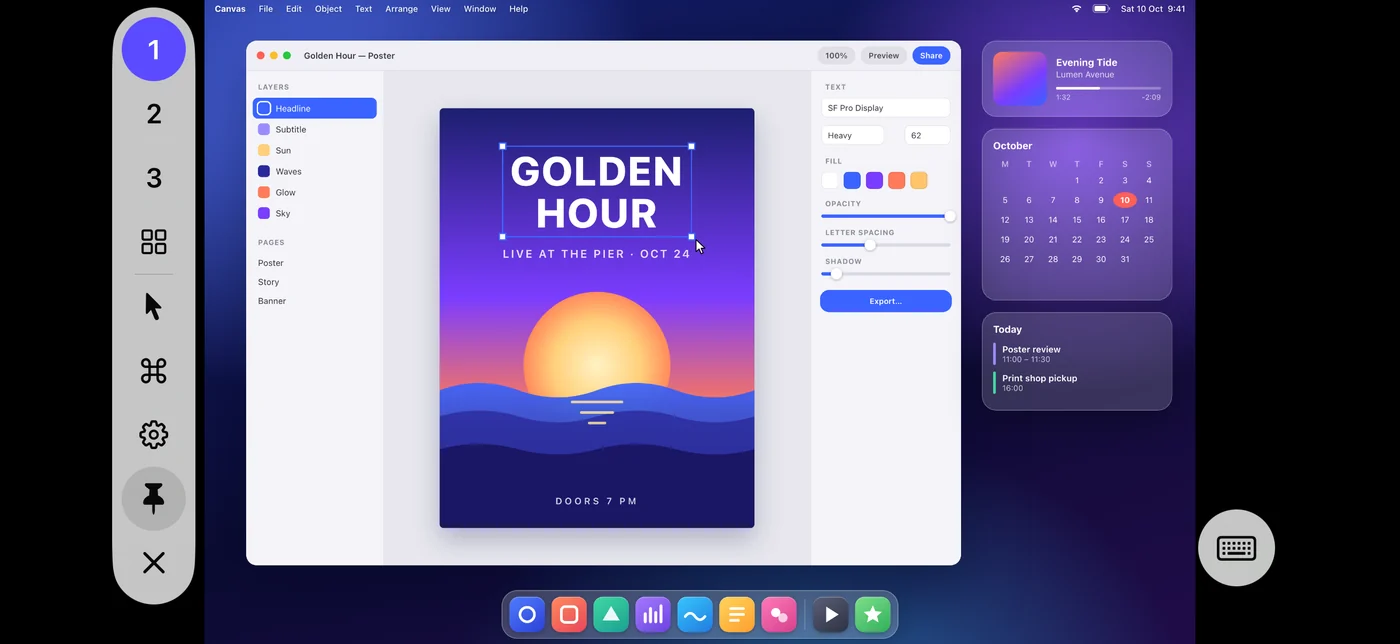
Your Mac, full screen
The display you pick fills your iPhone, and the controls wait in the margin beside it.
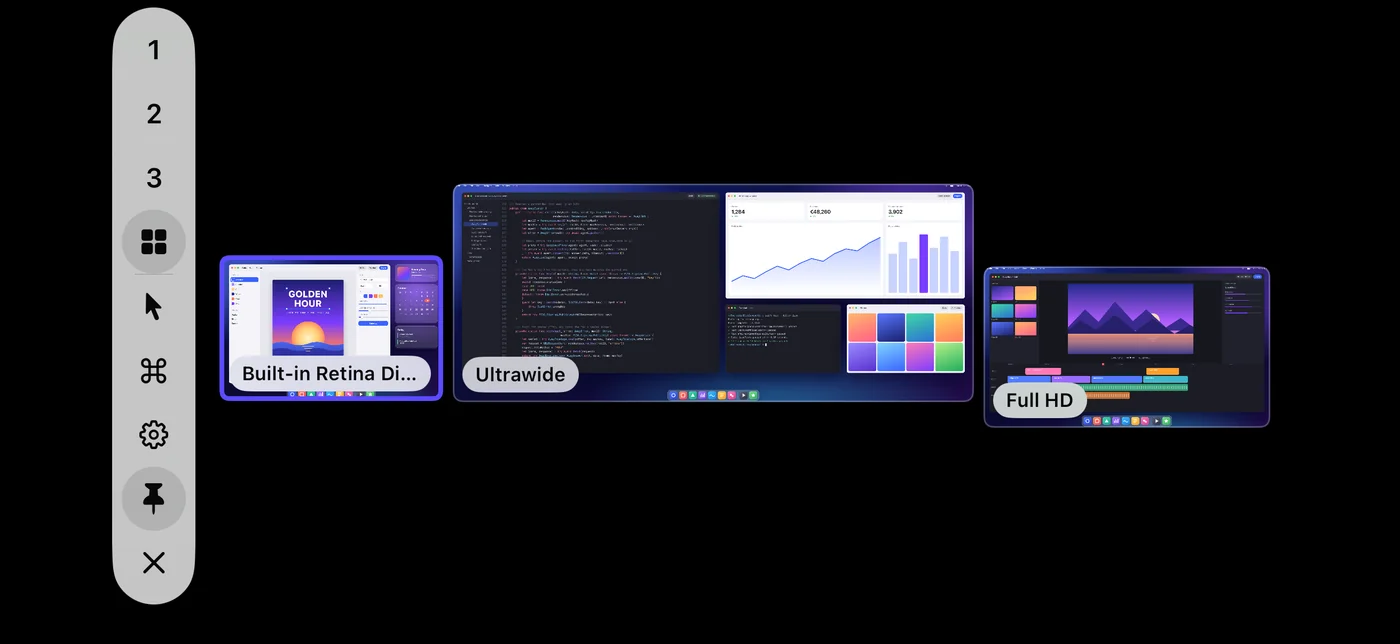
Every display at a glance
All Displays shows each of your Mac's displays live, arranged as they are on your desk. Tap one to take it over.
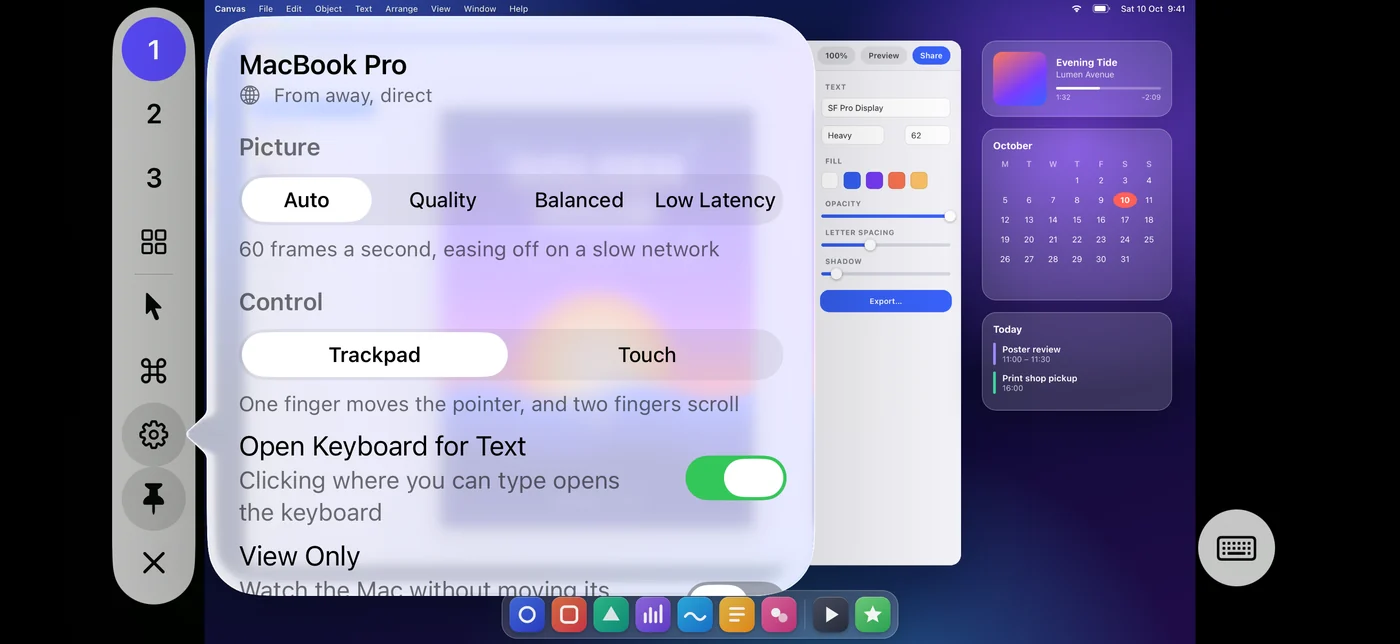
Settings in reach
Change the quality, the controls, sound, and Privacy Mode mid-session, and see how you're connected.
Three steps, once.
- 1
Install ElseScreen Host on your Mac
It lives in the menu bar and asks once for the permissions it needs to show and control your screen.
- 2
Scan the pairing code
Open ElseScreen on your iPhone or iPad, and scan the code your Mac shows. You only do this once.
- 3
Take over
Your Mac is one tap away, with every display it has: over your own network at home, and over the internet when you're away.
What you need
- A Mac with macOS 26 or later
- An iPhone with iOS 26 or an iPad with iPadOS 26, or later
- Both on the same network to pair, and for the fastest connection: Wi-Fi, or Ethernet for the Mac
- From away, an internet connection, with your Mac awake and online
Nothing to sign up for
ElseScreen has no accounts and no analytics, and collects nothing about you. Away from home, a small service helps your devices find each other, and a relay carries the session when nothing else gets through, encrypted so that neither can see your screen.
Read the privacy policy →